
Installing CData Virtuality Studio (Linux)
DEB-based Distributions
If your Linux distribution is based on Debian (such as Ubuntu, Linux Mint, Kali Linux), you can use the DEB package. It can be found at <server package>/standalone/deployment/ROOT.war or downloaded from the CData Virtuality Web UI.
For installation, use the following command:
sudo dpkg -i Data_Virtuality_Studio_linux.gtk.x86_64.debFor uninstallation, delete the folder \opt\datavirtuality\dvstudio with all its content.
Other Distributions
Pre-requisites
Software Requirements
XULRunner v.24 installed
Installing XULRunner
The CData Virtuality Studio requires XULRunner v.24. If you have a XULRunner pre-installed, please check its version and update it to v.24 if needed.
Installing XULRunner Manually
For all supported UNIX systems except OpenSUSE 13.1, XULRunner is not included in system packages. For these systems, XULRunner can be downloaded and installed using the link provided in GUI with the instructions to be followed.
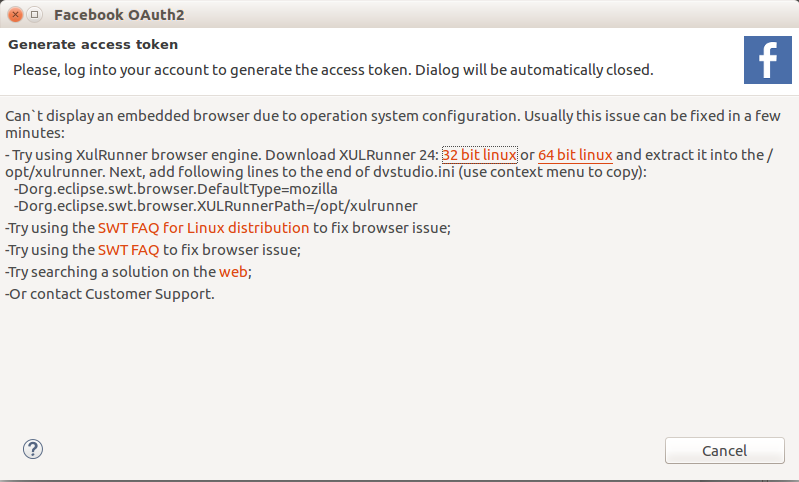
Installing XULRunner on OpenSUSE 13.1
--on 32bit architecture
wget http://ftp.mozilla.org/pub/mozilla.org/xulrunner/releases/24.0/runtimes/xulrunner-24.0.en-US.linux-i686.tar.bz2
sudo tar xvjf xulrunner-24.0.en-US.linux-i686.tar.bz2 -C /opt/

--on 64bit architecture
wget http://ftp.mozilla.org/pub/mozilla.org/xulrunner/releases/24.0/runtimes/xulrunner-24.0.en-US.linux-x86_64.tar.bz2
sudo tar xvjf xulrunner-24.0.en-US.linux-x86_64.tar.bz2 -C /opt/
Installing the CData Virtuality Studio Manually
The following steps will allow you to run the CData Virtuality Studio from a Linux machine. Please check the table of supported architectures and operating systems to see whether any additional steps are required or if your operating system is not supported.
Get the CData Virtuality Studio zip file according to your Linux architecture. The command 'uname -m' will show the architecture of the running system.
Platform
File
x86, i386, i586, i686....
admin_gui-linux.gtk.x86.zip
x64, amd64 or x86_64
admin_gui-linux.gtk.x86_64.zip
Unzip the folder to a location of your choice. We recommend using the path /opt/datavirtuality, and here are the commands you can use:
BASH--Create the directory, if not already existent: mkdir /opt/datavirtuality --Unpack the folder to /opt/datavirtuality/dvstudio unzip %pathToZipFile%/admin_gui-linux.gtk.x86.zip -d /opt/datavirtuality/dvsutdio --or unzip %pathToZipFile%/admin_gui-linux.gtk.x86_64.zip -d /opt/datavirtuality/dvsutdioEdit the config file for the CData Virtuality Studio: open dvstudio/dvstudio.ini in a text editor and set the path to XULRunner as follows:
CODE... -Dorg.eclipse.swt.browser.DefaultType=mozilla -Dorg.eclipse.swt.browser.XULRunnerPath=<PATH to XUL>Now you can execute dvstudio/dv_studio and run the CData Virtuality Studio.